Hotspot SIM Card Mistakes That Quietly Drain Your Data
A portable hotspot is supposed to make life easier. You power it on in a hotel, a campsite, or a client’s lobby, and your laptop, tablet, and phone all get online without hunting for the password to a sketchy public network. Yet many people end up frustrated. The data runs out days earlier than expected, speeds crawl during important calls, or the device refuses to connect at all after a new card goes in.
In most cases, the hardware is not the problem. The trouble comes from a handful of avoidable mistakes in how the SIM is chosen, set up, and used. This article looks at those mistakes one by one, with a focus on travelers moving around the United States, remote workers who rely on a hotspot as their office connection, and anyone keeping a hotspot on hand as a backup. Each section explains what goes wrong and what to do instead, so you get more from every megabyte.
Treating a Phone Plan Like a Hotspot Plan
The most common misstep happens before the hotspot is even switched on. Many people pull the SIM out of an old phone, or use a secondary phone line, and slide it into their hotspot. Sometimes it works for a day. Then speeds drop sharply, the carrier flags the line for tethering, or a separate hotspot allowance, much smaller than the headline data figure, gets used up.
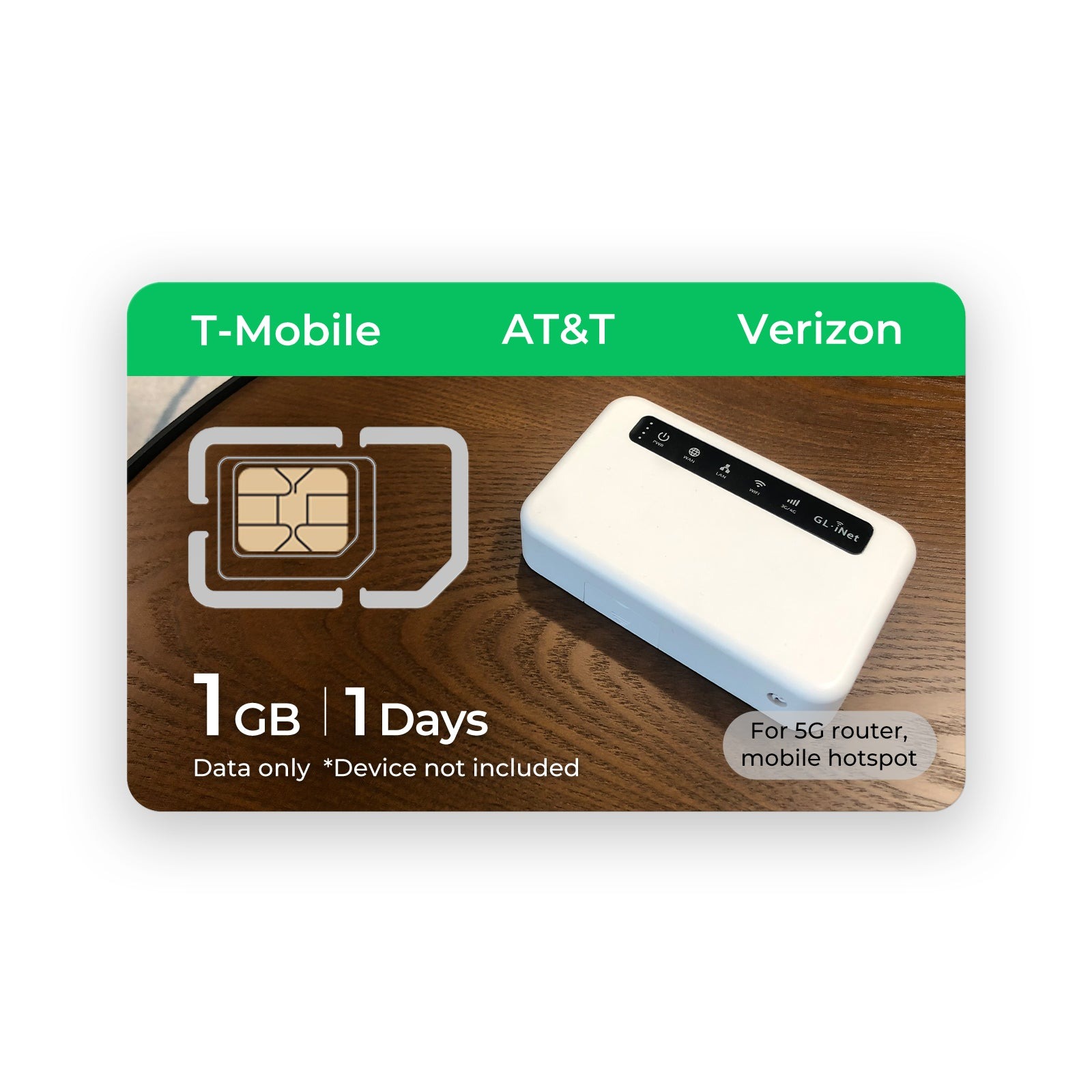
Phone plans are built around one person using one device. Hotspots share a connection across several gadgets, often for hours, and carriers price and manage that traffic differently. A dedicated hotspot sim card is provisioned for exactly this job, so the plan’s rules already expect laptops, tablets, and streaming sticks to be sharing the line.
Before buying anything, read the plan terms and look specifically for how hotspot or tethered usage is treated. If the fine print mentions separate tethering caps, video resolution limits for shared devices, or restrictions on use in routers and mobile hotspots, that plan is not the right fit for this role.
It is also worth checking whether the plan covers the regions you actually travel through. National coverage maps can look complete at a glance while hiding weak spots along rural highways or in mountain towns. Zoom into the specific cities, parks, and routes on your itinerary before committing, and pay attention to whether coverage is shown as LTE, 5G, or partner roaming.
Overlooking Device Compatibility
A new card that will not connect is almost always a compatibility issue rather than a faulty SIM. Two checks catch most of these problems before they cost you a day of your trip.
Expecting 5G From Hardware That Cannot Deliver It
A 5G-capable SIM does not turn an older LTE hotspot into a 5G device. The radio inside the hotspot determines which networks it can use. If your device only supports LTE, it will still work on most networks, but you will see LTE speeds. Check the model’s specifications for 5G support and, ideally, for the specific bands used in the regions you visit. In rural parts of the United States, broad LTE band support often matters more than 5G, since 5G coverage thins out quickly outside cities.
Forgetting About Carrier Locks
Hotspots sold through a carrier are frequently locked to that carrier’s network. Insert a SIM from a different provider and the device may show an error, ask for an unlock code, or simply stay offline. Contact the original seller or check the device’s settings menu to confirm lock status before you order a new card. Unlocked hotspots purchased directly from manufacturers usually avoid this issue entirely.
Letting Background Traffic Eat the Allowance
Once connected, the next data drain comes from devices behaving as if they are on unlimited home broadband. Laptops in particular have no idea they are on a metered connection unless you tell them. Operating system updates, cloud photo backups, and app store downloads can start silently and consume a large chunk of data in one sitting.
A few settings changes make a noticeable difference:
- Mark the hotspot network as metered on Windows, and turn on Low Data Mode for it on macOS and iOS.
- Pause cloud backup services such as photo sync and file storage clients while connected.
- Set streaming apps to a lower default video quality.
- Turn off automatic app and system updates until you are back on unlimited Wi-Fi.
It also helps to check the hotspot’s connected devices list. A forgotten tablet or a smart speaker that joined automatically can quietly pull data in the background. Remove anything that does not need to be online, and change the hotspot password if unfamiliar devices appear.
Placing the Hotspot Where Signal Goes to Die
People tend to leave a hotspot wherever it is convenient: in a backpack, on the floor beside the desk, or tucked in a car’s glove box. Each of those spots weakens the signal before the device can do its job. Weaker signal forces the radio to work harder, which drains the battery, generates heat, and lowers speeds.
Treat placement the way you would with a home router. Put the hotspot near a window, off the floor, and away from thick walls or metal surfaces. In a car, the dashboard or a spot near the rear window usually beats the center console. In hotels, rooms on higher floors with windows facing the street tend to perform better than interior rooms.
Heat is the other enemy. Hotspots running for hours, especially while charging, can get warm enough to throttle their own performance. Keep them in open air rather than under a pillow or inside a closed bag, and avoid leaving them on a sunny dashboard. If your device supports it, running on wall power with the battery removed can reduce heat during long work sessions.
Skipping the Activation Checklist
Many connection problems on the first day come down to rushing through setup. Activate the card and confirm it works before you leave home, rather than waiting until you arrive somewhere with no alternative connection. Insert the SIM with the device powered off, turn it on, and give it a few minutes to register with the network.
If the status shows signal but no internet, check the APN setting in the hotspot’s admin page. The provider’s instructions list the correct value, and many devices do not detect it automatically for newer or smaller carriers. Save the setting, restart the device, and test with a couple of different websites. Writing the admin page address and password on a sticky note inside the device case saves time if you need to troubleshoot on the road.
While you are in the admin page, change the default Wi-Fi password printed on the device label. Anyone who has handled the hotspot, or seen the label, could otherwise join your network and consume your data without you noticing until the allowance runs out.
Picking a Plan That Does Not Fit the Situation
The final mistake is buying the wrong shape of plan. Someone who needs internet for a weekend camping trip has very different needs from a remote worker spending a month on the road. Short trips suit flexible options that cover just the days you travel, while long stays and daily video calls call for a larger allowance that will not run dry halfway through.
Think about the heaviest day you expect, not the average one. A day with several video meetings and a large file upload looks nothing like a day of email and maps. Providers like Eiotclub offer hotspot-focused options for use across the USA, which makes it easier to match a plan to a specific trip or work pattern instead of stretching a phone plan beyond what it was designed for. Whatever you pick, check your usage after the first few days and adjust early.
Smarter Habits for a Hotspot That Keeps Up
Most hotspot frustration traces back to a few habits that are easy to change once you know about them. Start with a plan built for shared, multi-device use rather than a phone line pushed beyond its terms. Confirm that your hotspot is unlocked and supports the networks you will rely on, and keep realistic expectations about 5G outside major cities. Once online, tell your laptop and phone they are on a metered connection, pause heavy background syncing, and prune the connected devices list. Give the hotspot a good spot near a window with plenty of airflow, and activate the card before you travel instead of on arrival. Finally, choose a plan that matches your heaviest days, not your lightest ones. With these adjustments in place, a hotspot becomes what it should be: a quiet, dependable connection that follows you from the hotel to the campsite to the coffee shop without draining your data or your patience.